Uploading Excel, Word, and PowerPoint Files to Google Drive
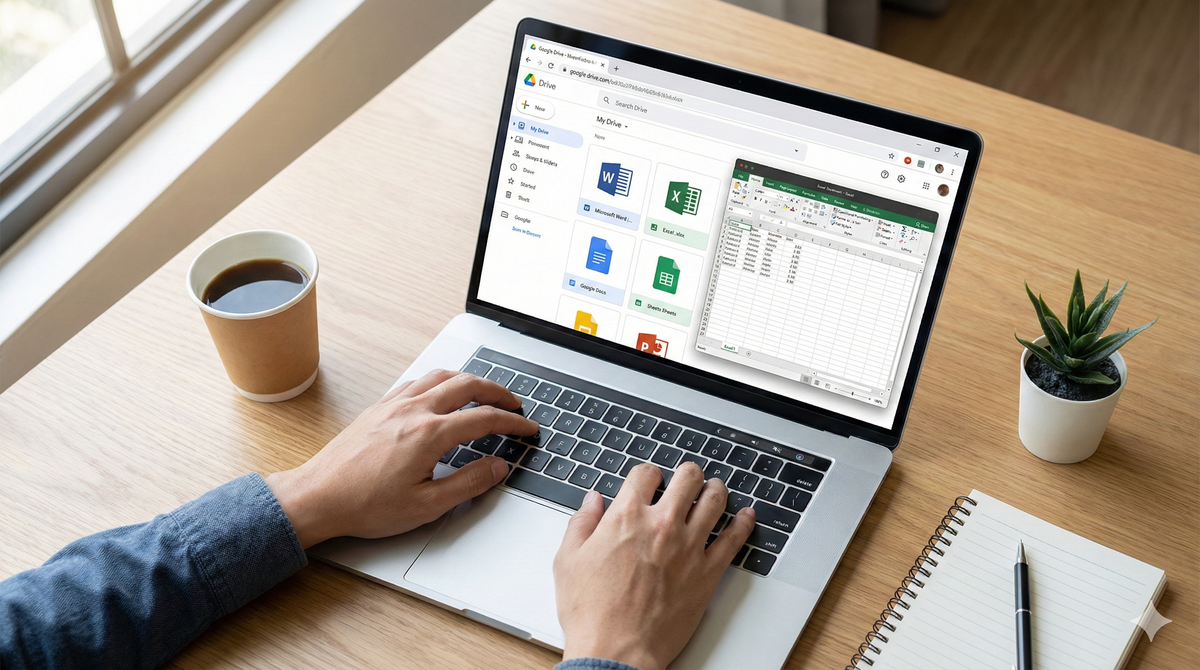
You've organized your folders. Now let's talk about uploading the files you probably use most: Excel spreadsheets, Word documents, and PowerPoint presentations.
Google Drive accepts all of these. And here's the good news: you can edit them directly without converting them to Google's format.
You no longer need to convert files to edit them
This wasn't always the case. Earlier, if you uploaded an Excel file, you could only preview it. To edit, you had to convert it to Google Sheets first.
Not any more.
Now, when you upload an Excel, Word, or PowerPoint file, you can open and edit it directly in your browser. Your changes save automatically to the original file. The format stays exactly as it was.
This means you can collaborate with someone using Microsoft Office without anyone needing to convert anything. They send you an Excel file. You edit it in Google Drive. They open it in Excel. Everything works.
So why would anyone convert files?
Think of it like renting versus owning.
When you edit an Excel file directly in Google Drive, you're renting Google's editing tools. It works, but you're still bound by Excel's format. Some advanced Google features won't be available.
When you convert to Google Sheets, you're moving in permanently. You get full access to everything Google offers: real-time collaboration, built-in version history, integrations with other Google tools, and features that only work in Google's native format.
When to convert and when not to
Don't convert when:
- You need to share the file with someone who uses Microsoft Office.
- The file has complex formatting, advanced formulas, or macros that might break during conversion.
- You just need to make quick edits and send it back.
Convert when:
- You want to use Google's collaboration features fully.
- Multiple people will work on the file over a long period.
- You're moving away from Microsoft Office entirely.
How to enable automatic conversion
If you decide you want all your uploads to convert automatically, you can turn this on.
- Open Google Drive in your browser.
- Click the gear icon in the top right corner.
- Select “Settings”.
- Find the option that says “Convert uploads”.
- Check the box that says “Convert uploaded files to Google Docs editor format”.
From now on, every Excel, Word, and PowerPoint file you upload will automatically convert to its Google equivalent.
What's next?
Your files are on Google Drive. You can edit them directly or convert them as needed. Now it's time to learn how to share them without sending attachments over email. That's what we'll cover in the next post.