How to Upload Files to Google Drive
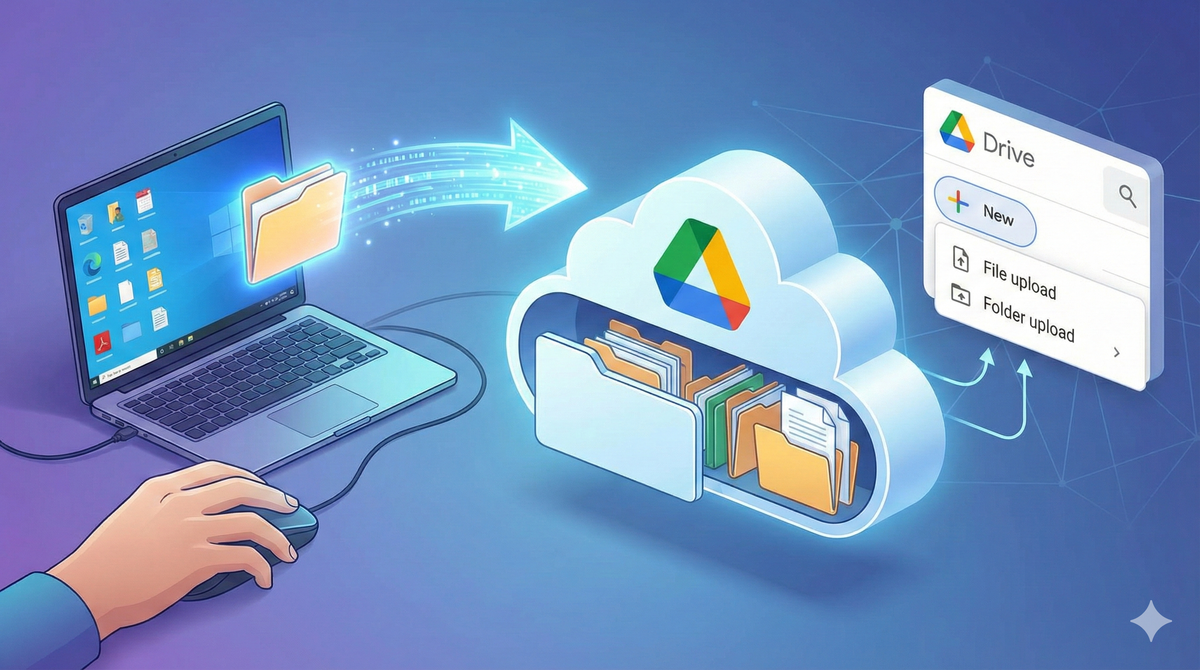
In the previous post, we talked about Google Drive being like a computer that Google runs for you. Now let's look at how you move your files from your computer to Google's.
Think of it like moving your documents from your desk drawer to that shared filing cabinet we discussed. Once they're there, you can access them from anywhere, and so can anyone you choose to share them with.
Two ways to upload files
There are two simple methods. Both get the job done. Pick the one that feels natural to you.
Method 1: Drag and drop
This is exactly what it sounds like.
- Open Google Drive in your browser.
- Open the folder on your computer where your file is stored.
- Drag the file from your computer and drop it into the Google Drive window.
Done. The file now lives on Google's computer.
Method 2: Use the upload button
If dragging feels awkward, use the built-in option.
- Open Google Drive in your browser.
- Click the "New" button on the top left.
- Select "File upload" to upload a single file, or "Folder upload" to upload an entire folder.
- Browse to your file or folder, select it, and click "Open".
Google Drive handles the rest.
What happens after you upload?
Your file is now stored on Google Drive. It is backed up automatically. You can access it from any device with internet access. And the original file on your computer remains untouched. You haven't moved it. You've copied it to a safer, more accessible location.
A word on organization
Just like a messy desk makes it hard to find things, a messy Google Drive creates the same problem. Before you start uploading everything, think about creating folders. Group your files by project, by client, by month. Whatever makes sense for how you work.
We will cover folder organization in a future post.