How to Organize Folders in Google Drive
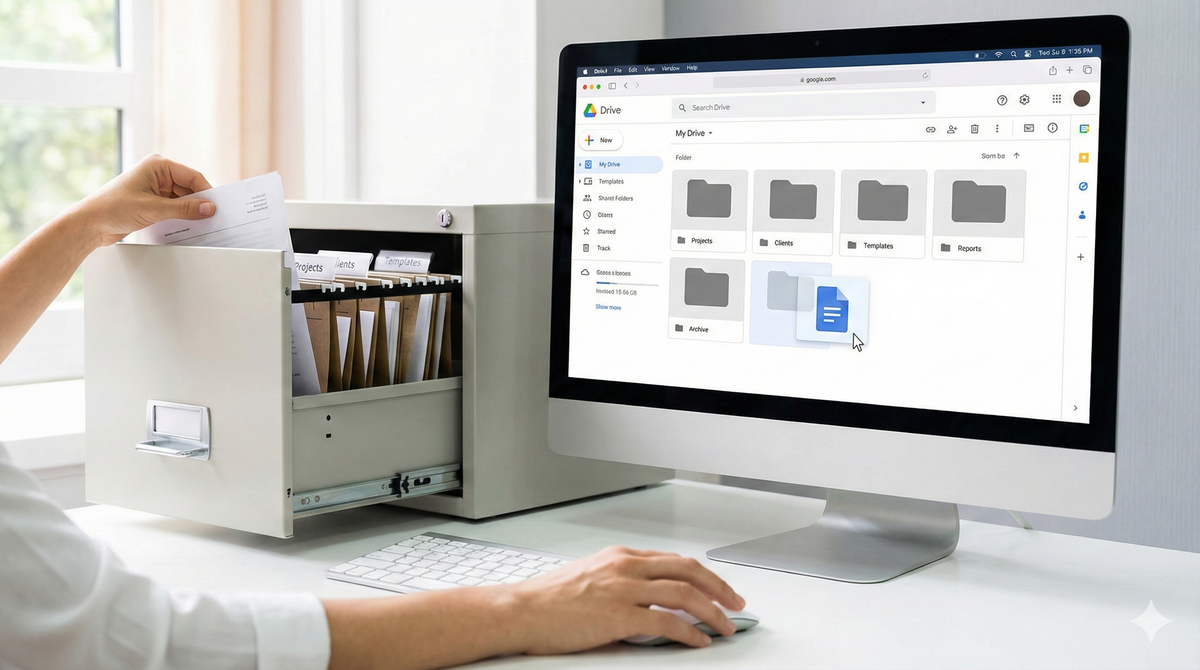
You've uploaded your files to Google Drive. Now comes the part most people skip and later regret: organization.
Think of Google Drive like a warehouse. You can throw everything inside, and technically it's all there. But when you need to find one specific document six months from now, you'll be wandering through aisles with no labels, opening boxes at random. A few minutes spent organizing today saves hours of frustration later.
The filing cabinet principle
Imagine a well-organized filing cabinet. It has drawers. Each drawer has hanging folders. Each hanging folder has documents related to one topic.
Google Drive works the same way.
- Folders are your drawers.
- Subfolders are your hanging folders.
- Files are your documents.
The goal is simple: anyone should be able to find any file in three clicks or fewer.
How to create a folder
- Open Google Drive in your browser.
- Click the “New” button on the top left.
- Select “New folder”.
- Give it a clear, descriptive name.
- Press “Create”.
Your folder now appears in Google Drive. You can drag existing files into it or upload new files directly inside it.
How to create subfolders
A subfolder is just a folder inside another folder.
- Double-click a folder to open it.
- Click “New” and select “New folder” again.
- Name it and create.
You can nest folders as deep as you need. But here's a word of caution: more than three levels deep usually creates more confusion than clarity.
A simple structure that works
If you're unsure where to start, here's a structure that works for most professionals.
My Drive
├── Projects
│   ├── Project A
│   ├── Project B
│   └── Project C
├── Clients
│   ├── Client X
│   └── Client Y
├── Templates
├── Reports
│   ├── Monthly
│   └── Annual
└── Archive
The “Projects” folder holds active work. “Clients” keeps client-specific documents together. “Templates” stores files you reuse. “Reports” separates recurring reports by frequency. “Archive” is where completed or outdated work goes to rest.
Adapt this to your needs. The structure matters less than the consistency. Pick a system and stick to it.
Naming files and folders
A folder called “Stuff” helps no one. Neither does “Final_v2_updated_new”.
Good naming is specific and predictable.
- Use dates in a consistent format. “2024-01” sorts better than “January 2024”.
- Lead with the most important word. “Invoice_ClientX_2024-01” is easier to scan than “2024-01_ClientX_Invoice”.
- Avoid special characters. Stick to letters, numbers, hyphens, and underscores.
Moving files into folders
Already have files scattered across your Drive? No problem.
- Click on the file you want to move.
- Drag it into the destination folder. Or right-click, select “Move to”, and choose the folder.
You can select multiple files by holding Ctrl (or Cmd on Mac) and clicking each file, then move them all at once.
One final thought
Organization is not a one-time task. It's a habit. Every time you upload a file, take five seconds to put it in the right place. Every month, spend ten minutes cleaning up anything that landed in the wrong spot.
A clean Drive is a fast Drive.