How to Create a Sharing Structure That Lasts
You know how to share files. But sharing one file at a time to one person at a time doesn't work when your team grows. You need a system that holds up over time.
This post is about building that system.
The problem with sharing files one by one
Imagine a library where books aren't on shelves. Every time someone needs a book, the librarian digs through a pile, finds it, and hands it over. Works fine with ten books. Falls apart with ten thousand.
Most teams share files the same way. Need to share something? Right-click, share, type an email. Do this hundreds of times and you end up with chaos:
- No one knows who has access to what.
- Sensitive files are still shared with people who left the company two years ago.
- New people wait days to get access to files they need on day one.
The answer isn't to share more carefully. It's to share differently.
Share folders, not files
This is the big shift.
Stop sharing individual files. Share folders instead.
When you share a folder, everything inside it is automatically shared. Add a new file tomorrow and everyone with access to the folder can see it. No extra steps.
Think of it like giving someone a key to a room instead of a key to every single drawer. They can access everything in the room. When you add a new drawer, they can access that too.
This one change solves most of the mess.
A simple folder structure that works
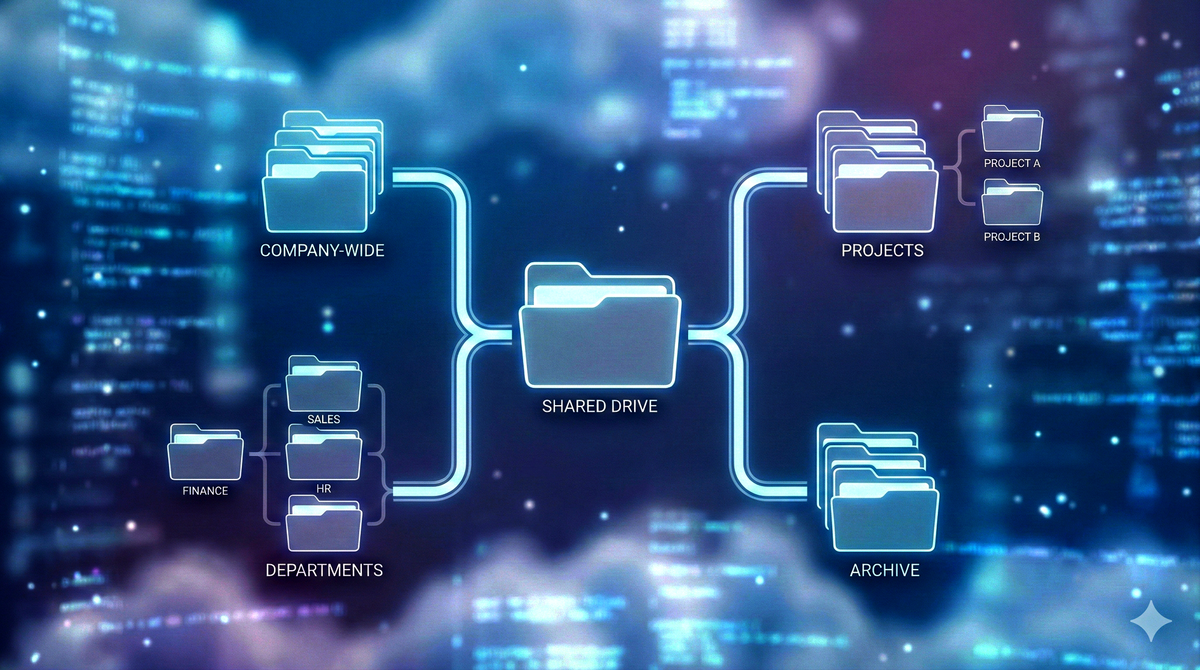
Before you share anything, get your folders in order. Here's a structure that works for most teams.
Team Folder
├── Company-Wide
│   ├── Policies
│   ├── Templates
│   └── Announcements
├── Departments
│   ├── Finance
│   ├── Sales
│   ├── Operations
│   └── HR
├── Projects
│   ├── Project A
│   ├── Project B
│   └── Project C
└── Archive
Company-Wide holds documents everyone in the organisation needs. Policies, templates, announcements. Everyone can view. Only a few can edit.
Departments hold work specific to each team. The finance team gets access to Finance. The sales team gets access to Sales. Simple.
Projects hold work that involves people from different teams. Share each project folder with the people working on it, regardless of which department they belong to.
Archive is where finished work goes. Accessible if someone needs to look back, but out of the way of daily work.
Who should own the folders
This is where most teams make a costly mistake.
When someone creates a file, they own it. When they leave, the file is stuck in their account. You have to chase down access, transfer ownership, and hope nothing gets lost.
The fix: business files should not live in personal accounts.
If your organisation uses Google Workspace, use Shared Drives. Shared Drives belong to the organisation, not to any individual. When someone leaves, the files stay exactly where they are.
If you don't have Shared Drives, pick one or two trusted people to own the main folders. Keep important files out of personal Drives.
What access level to give
Not everyone needs full control. Here's a simple guide.
Company-Wide folder: Everyone can view. Only HR or admin can edit.
Department folders: Team members can edit. Other departments either can't see it or can only view.
Project folders: Project team can edit. People who just need updates can view or comment.
Archive: Everyone can view. Only a few people can edit or delete.
Start tight. It's easy to give more access later. It's messy to take it away.
When someone joins
If your structure is right, onboarding takes two minutes.
Add them to their department folder. Add them to any projects they're working on. Done. They have everything they need.
No chasing people down to share files. No waiting. No gaps.
When someone leaves
Remove them from all shared folders. If they owned any files, transfer ownership to someone else. Review anything they created for sensitive information.
If you're using Shared Drives, it's even simpler. Remove access and everything stays in place.
Common mistakes to avoid
Sharing files instead of folders. You end up managing hundreds of individual permissions. Share at the folder level.
Letting everyone create folders anywhere. You end up with five folders called "Marketing Stuff" with different things in each. Agree on a structure and stick to it.
Sharing with personal email addresses. If someone leaves, you can't revoke access to their personal Gmail. Use work emails only.
Forgetting about people outside your company. Clients and vendors sometimes need access. Don't scatter their access across your folders. Create one folder for external sharing and keep it there.
A quick checklist
Before you build your structure, check these:
- Am I sharing folders, not individual files?
- Are important files in Shared Drives or owned by a central account?
- Does every folder have a clear purpose?
- Do I have a plan for adding new people?
- Do I have a plan for removing people who leave?
- Are external collaborators kept in a separate folder?
If you answered no to any of these, start there.
What's next?
You have a structure. But structure alone doesn't keep things clean forever. In the next post, we'll cover how to check what's shared too broadly and clean up permissions before they become a problem.