How to Audit Your Google Drive Sharing with a Simple Tracker
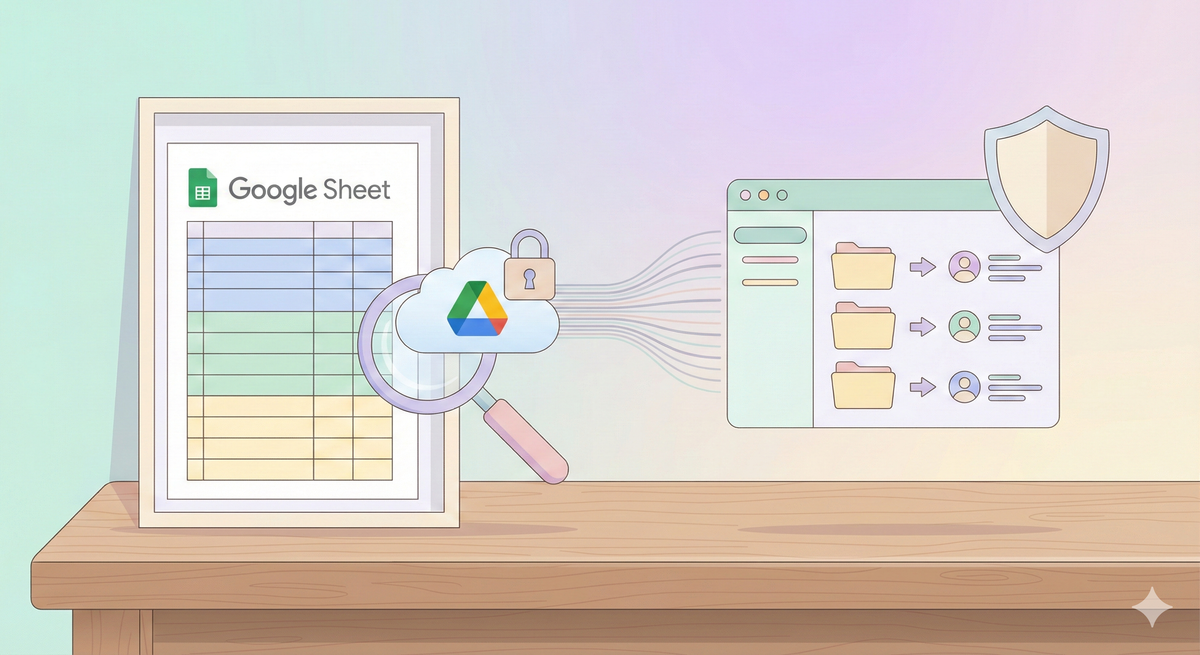
You've built a sharing structure. But how do you know if it's still in good shape six months from now? Files get shared with the wrong people. Permissions pile up. What started clean becomes a mess.
Checking manually doesn't work. You'd have to open every folder, check every permission, remember what you saw. Nobody has time for that.
The solution is to build a simple tracker that does this for you automatically.
What we're building
A Google Sheet that:
- Lists all the folders you want to monitor.
- Fetches the sharing permissions for each folder automatically.
- Can run on demand or every day at 6am.
- Shows you exactly who has access and what type of access they have.
Think of it like a security camera for your Google Drive. You set it up once, and it watches for you.
Step 1: Create a new Google Sheet
Create a new Google Sheet. Name it something like “Drive Permissions Tracker”.
Don't worry about setting up any sheets or columns. The script will do that for you.
Step 2: Add the Apps Script
In your spreadsheet, go to Extensions > Apps Script.
Delete any code you see there and paste this: